Screen tour
After logging in, the Real-time screen opens first. It’s made up of a top bar, a content area in the middle, and navigation at the bottom.
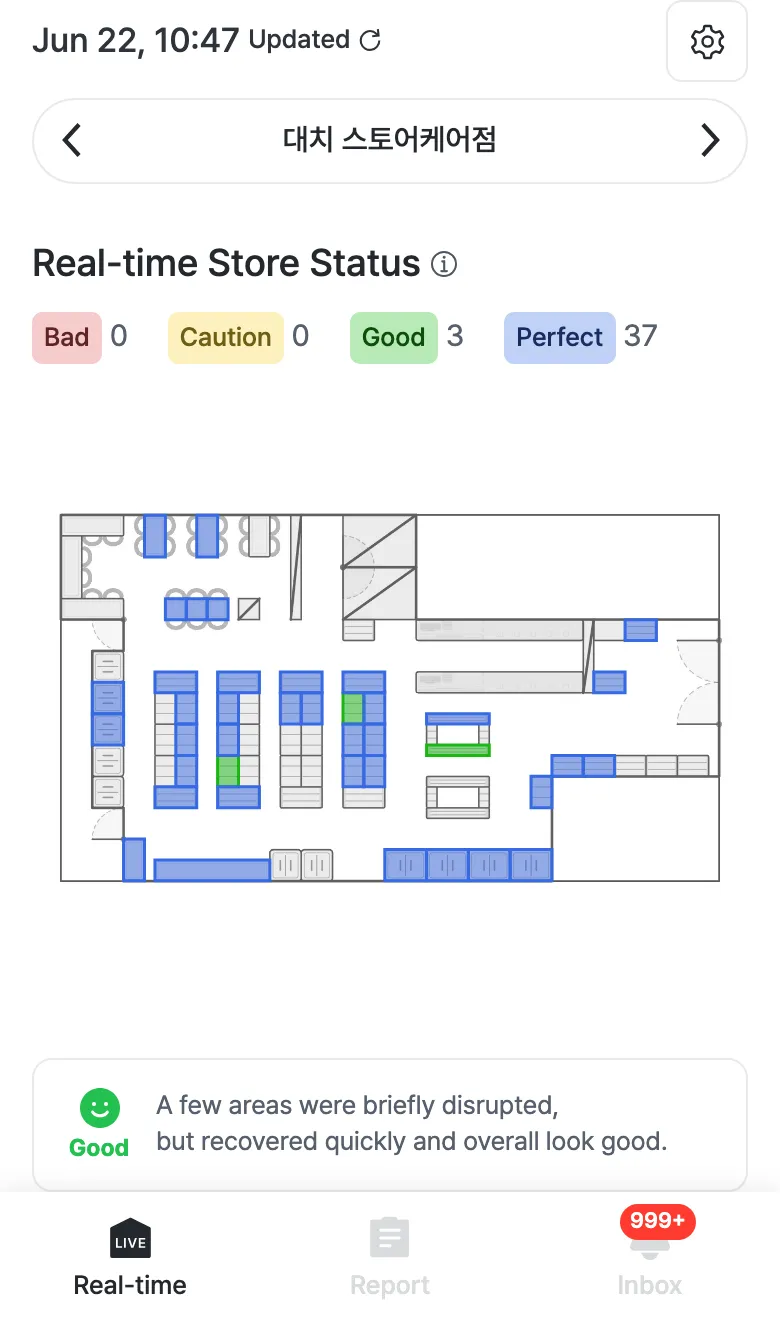
Top bar
- Last updated — the top left shows
Mon DD, HH:MM Updated. Tap the refresh icon beside it to reload the latest status. - Settings (⚙️) — the gear icon at the top right opens the Settings screen.
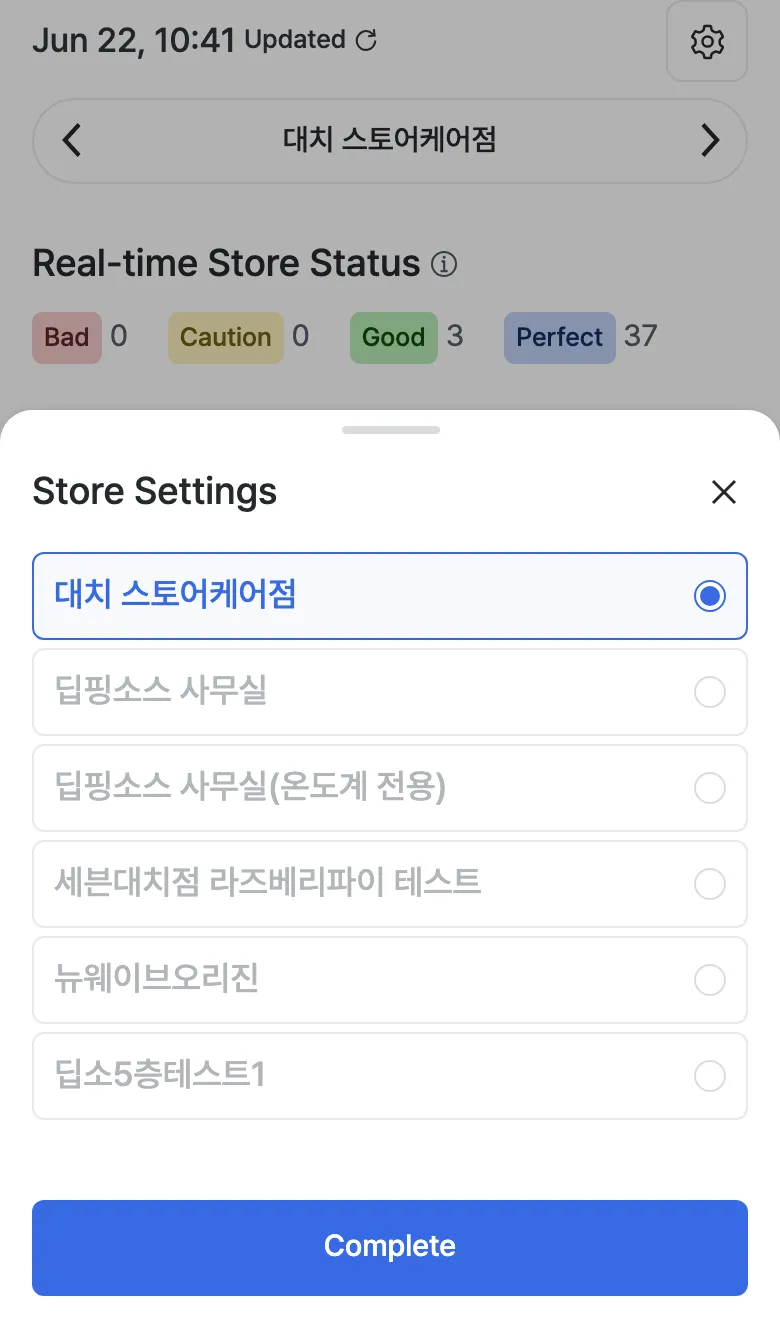
Store selector
The name of the store you’re viewing appears below the top bar (e.g. 대치 스토어케어점). If you run multiple stores, use the left/right arrows or tap the store name to pick a store from the list.
Bottom navigation
Three tabs at the very bottom move you between the main screens.
| Tab | Description |
|---|---|
| Real-time | Check your store’s status right now, live. |
| Report | Pick a past date and look back at that day. |
| Inbox | See store alerts in one place. The unread count shows as a badge. |