Real-time Store Status
The Real-time tab shows your store’s status “right now.” At the top are the area status summary and the store floor plan.
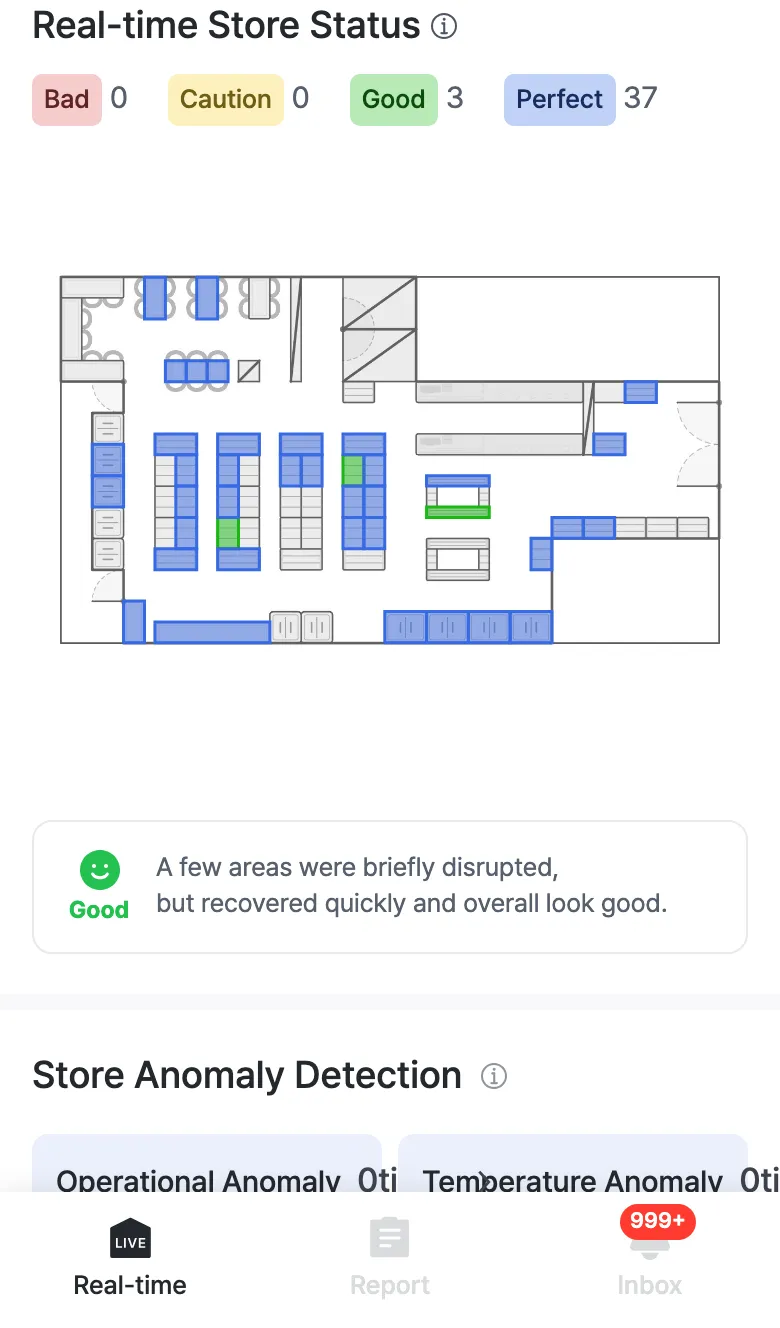
Area status summary
Each area in the store (display shelves, tables, refrigeration units, etc.) is classified into four levels by its current status, and the chips show how many areas fall into each level.
| Status | Color | Meaning |
|---|---|---|
| Perfect | 🔵 Blue | Fully meets the standard |
| Good | 🟢 Green | Generally in good shape |
| Caution | 🟡 Yellow | Will need tidying soon |
| Bad | 🔴 Red | Needs immediate attention |
On the floor plan, each area is filled with the same color, so you can immediately tell which area in which spot has a problem.
An area with no status data (e.g. due to a connection error) is shown uncolored as “no data.” If “no data” lasts more than a day, please contact us.
Tap an area
Tap an area on the floor plan and a card slides up from the bottom for that area.
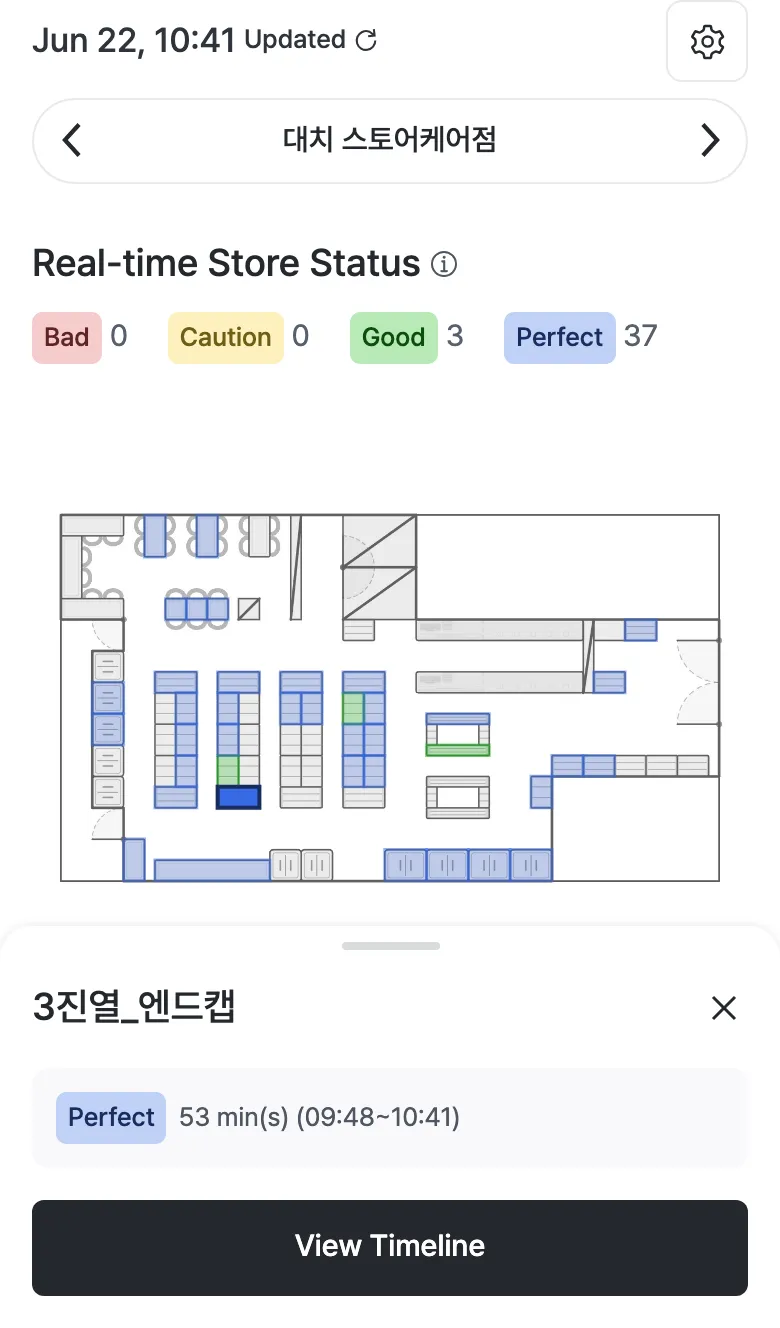
- Shows the area name, its current status, and how long that status has held (e.g.
Perfect 53 min(s)). - Tap View Timeline to see the area’s status changes over the last 24 hours on the Timeline.
One-line summary
Below the floor plan, a summary card sums up today’s store status in a single sentence. With an emoji, it quickly tells you the store’s overall mood right now.