Report
The Report tab lets you pick a past date and look back at how the store did that day. If Real-time is “now,” Report is the retrospective. The layout is almost the same as the Real-time screen, except the reference point changes from “today” to “the selected date.”
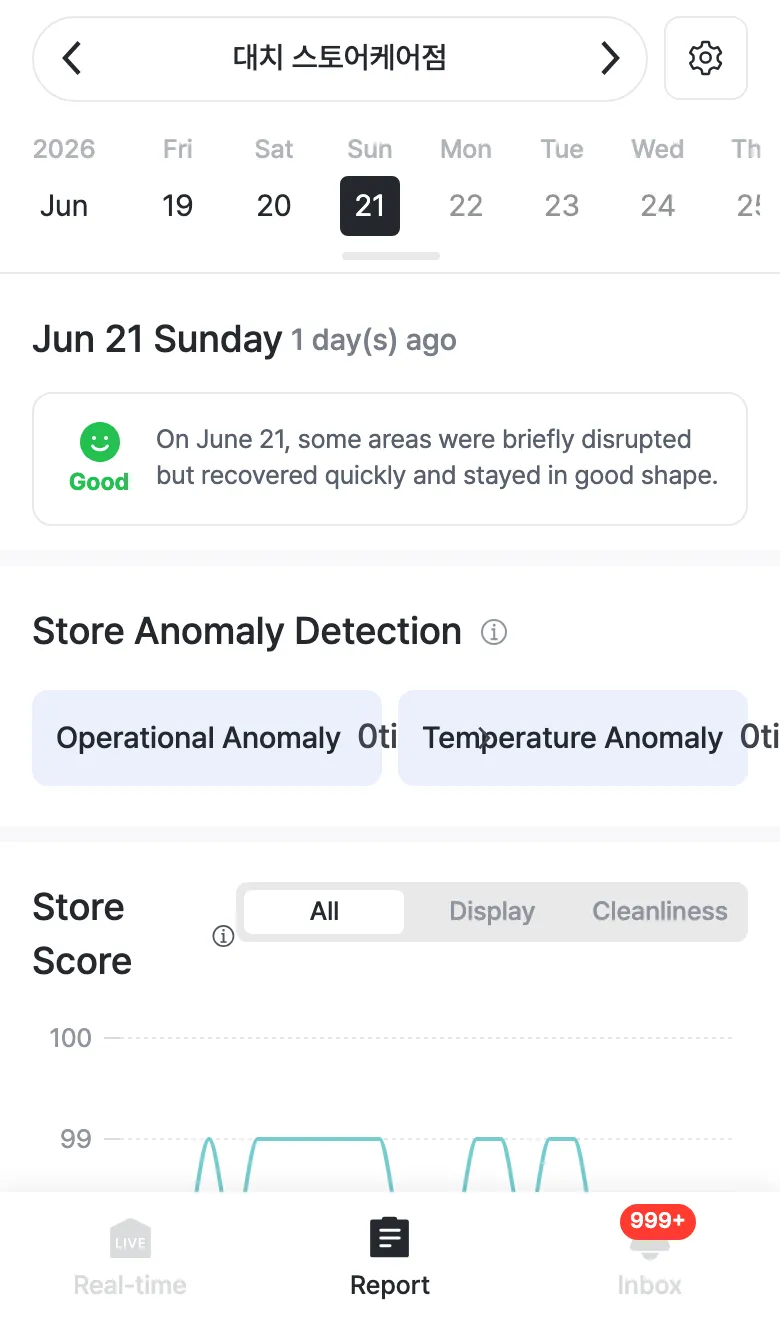
Pick a date
Tap a date to view on the weekly calendar at the top. Below the selected date you’ll see Mon DD Weekday along with how many days ago it was (e.g. 1 day(s) ago), plus a summary card that sums up that day’s status in one sentence.
That day’s anomaly detection · store score
Based on the selected date, Store Anomaly Detection (operational/temperature) and Store Score are shown exactly the same way as on the Real-time screen. Tap a card to open that day’s detail list.
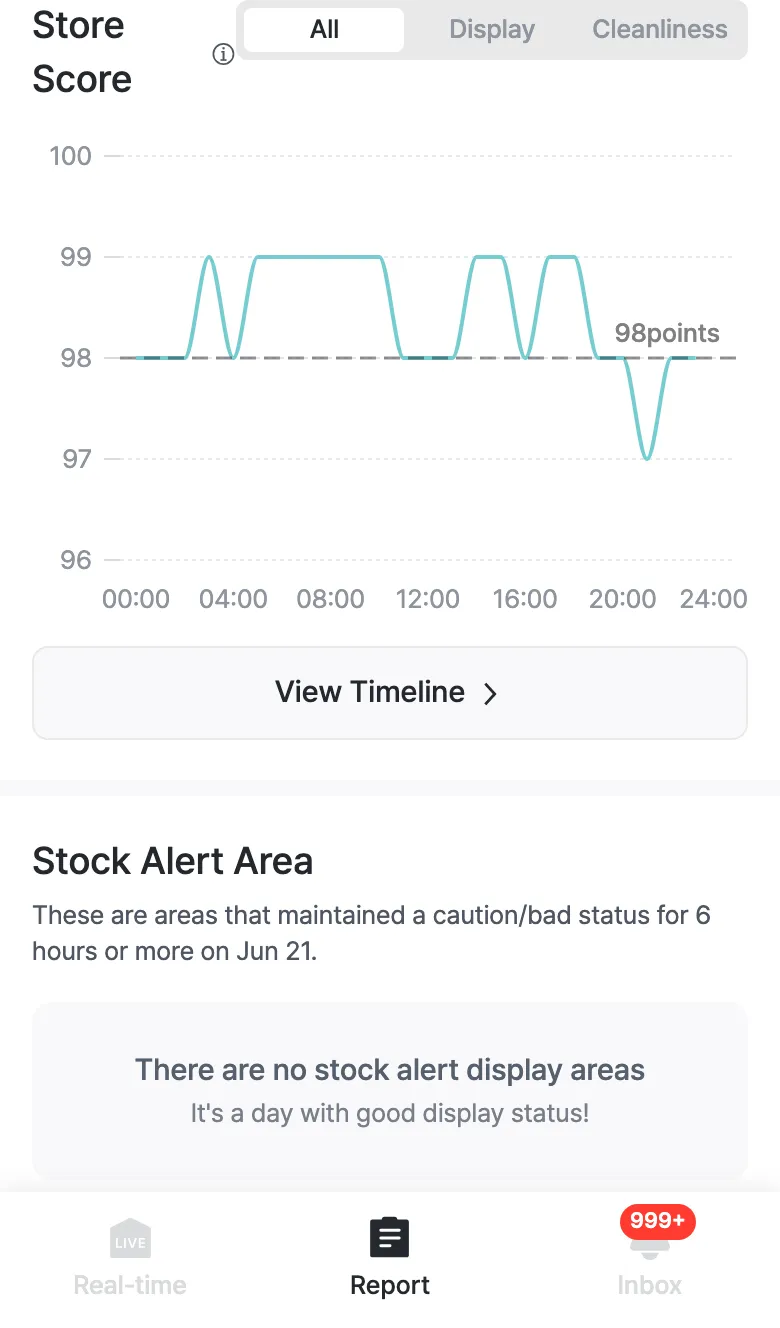
Stock Alert Area
Collects display areas that held a caution/bad status for 6 hours or more on the selected day. If there are none, it shows “There are no stock alert display areas.”
Next, you can see that day’s most active Popular Display Area.