Inbox
The Inbox collects store alerts in chronological order. The bell icon in the bottom navigation shows the unread count as a badge.
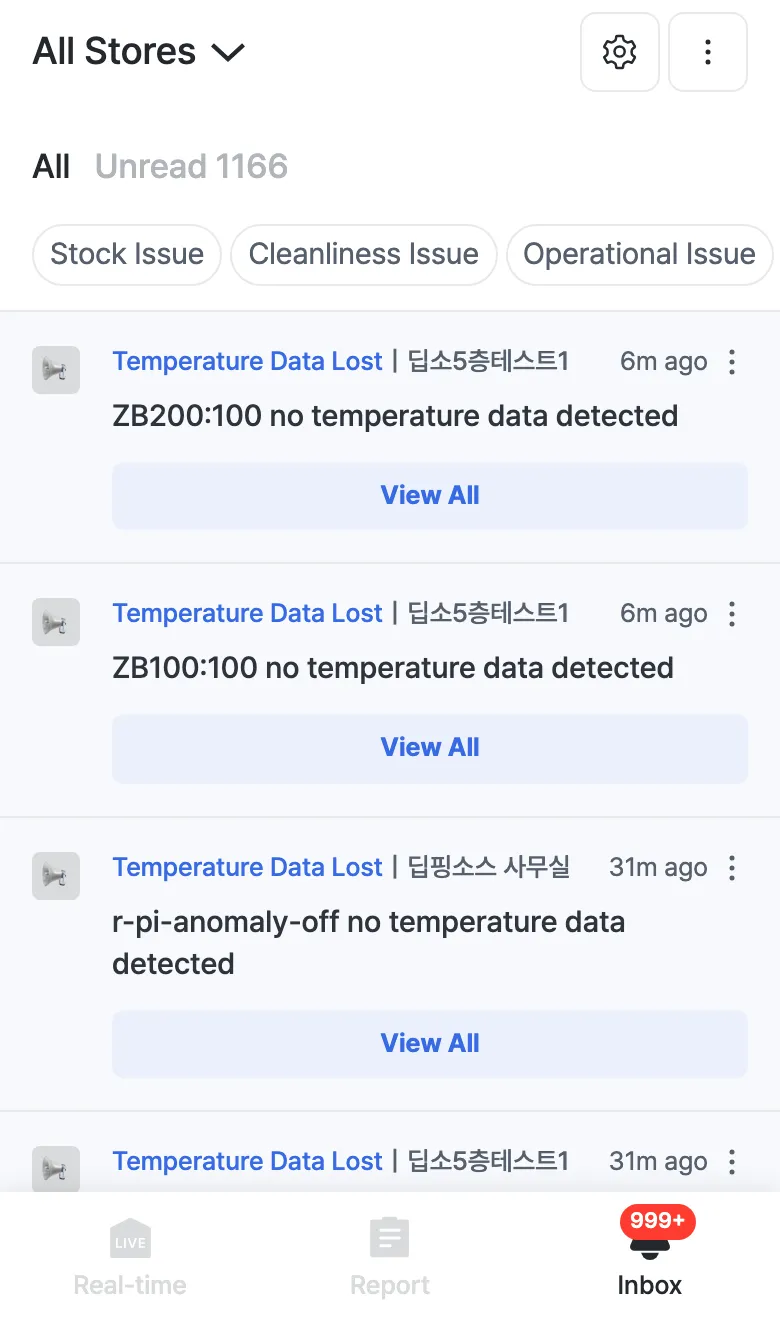
Top area
- Store filter — use
All Stores ⌄at the top left to view alerts for a specific store only (when you run multiple stores). - Settings (⚙️) · More (⋮) — provide alert-related settings and extra actions.
- All / Unread — switch between all alerts and unread alerts (with a count).
Type filters
Use the chips above the list to narrow down to the alert types you want.
| Type | Example |
|---|---|
| Stock Issue | Display shelf out-of-stock/bad status |
| Cleanliness Issue | Table/area cleanliness status |
| Operational Issue | Operations situations such as an unattended register |
| Temperature Anomaly | Refrigeration/freezer temperature, plus equipment alerts like Temperature Data Lost and low battery |
| Store Summary | Daily store score summaries, etc. |
Alert list
Each item shows the type, store name, time, and message. When alerts repeat for the same item, they’re grouped under View All; tap it to see all the times at once.
Tap an alert to jump straight to its related screen. For example, tapping a temperature alert opens that unit’s temperature detail.
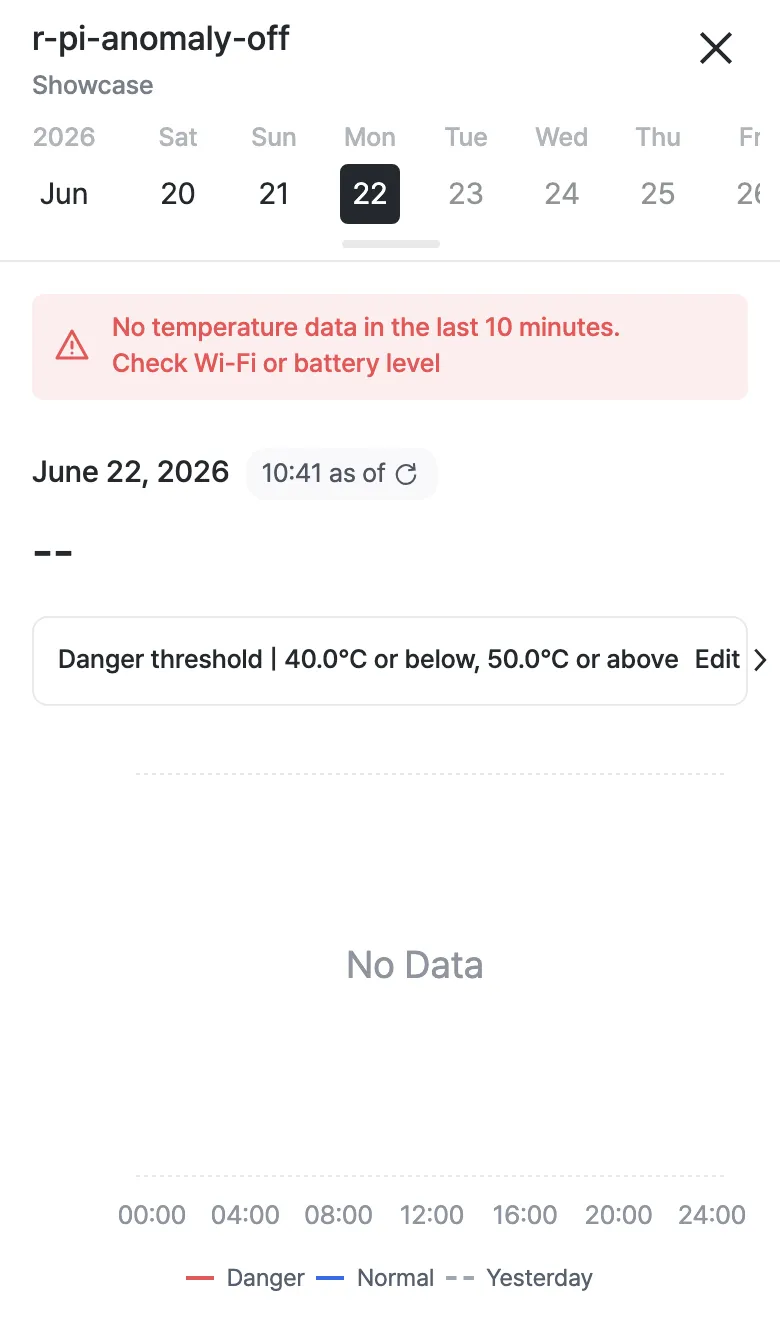
Temperature Data Lost and low-battery alerts come from the camera/thermometer hardware. If they repeat, check that device’s Wi-Fi connection or battery.